
Smart notifications
Never miss the notification that blocks the work
Ping separates updates that need action from information that can wait, so important handoffs stay visible without turning every notification into an emergency.
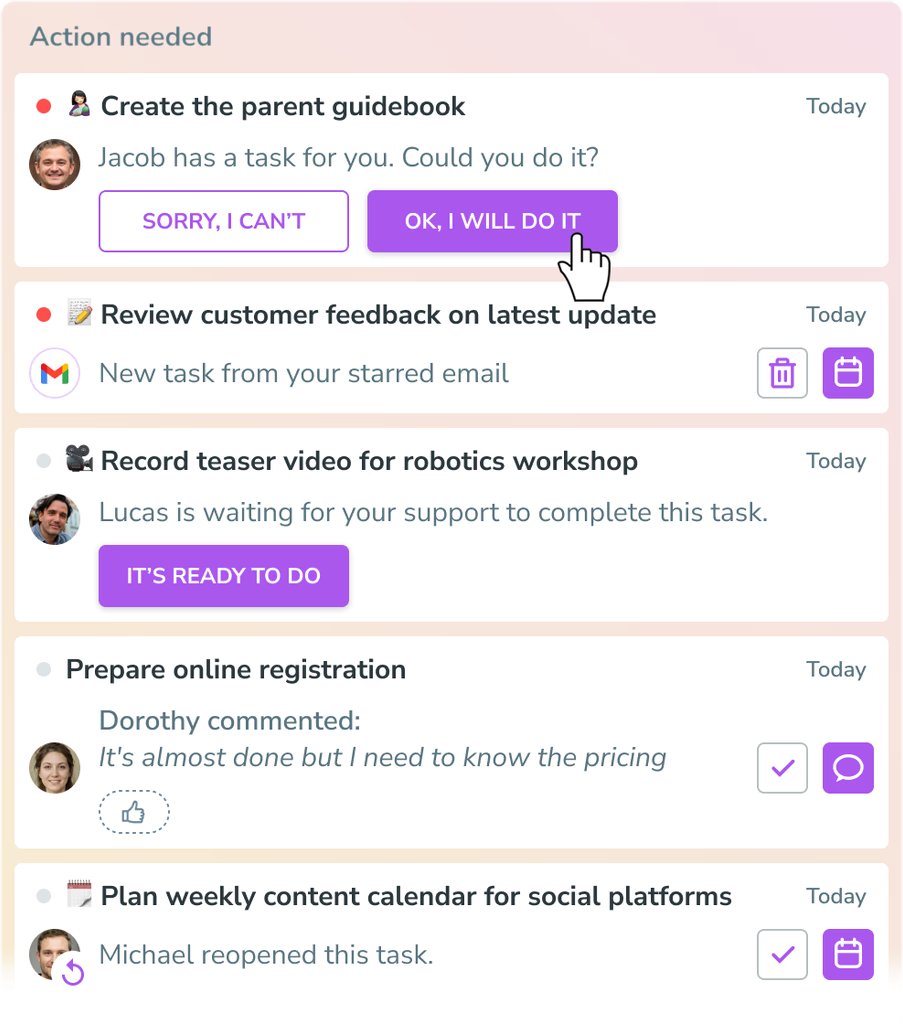
Two notification types. One calmer inbox.
Actionable stays at the top
Waiting for help, approvals, and newly assigned tasks remain visible until someone takes the next action.
Resolve the blocker, not the symptom
Help a teammate, accept completed work, request changes, or take ownership of a new task right from the notification.
Information stays lightweight
Comments and reactions keep you informed, then disappear with one checkmark or a single Clear all action.
Notifications × progress
Keep important work visible without creating noise.
Ping uses the same Actionable layer for task handoffs and approvals. That means a waiting teammate or a finished task cannot be accidentally cleared like an ordinary update.
See the task progress workflowWhy smart notifications work
Blockers are impossible to miss
Actionable items are placed first and remain until the person responsible responds.
Information does not compete
Comments and reactions are still available, but they do not crowd out decisions that unblock work.
Every action has context
Open the related task and see why the notification exists before you respond or clear it.
How to use Smart notifications
- Open Notifications. Start with the Notifications tab to see the work that needs your attention.
- Handle Actionable items. Help, approve, request changes, or accept a new task so the blocker is resolved for the team.
- Review informational updates. Scan comments and reactions when you have a moment, without confusing them with urgent work.
- Clear what you have read. Use the checkmark for one item or Clear all for informational updates you no longer need.
Smart notifications FAQ
What are Actionable notifications?
Actionable notifications represent work that needs a decision or response, such as helping with a blocked task, approving completed work, or accepting a newly assigned task. They stay at the top of Notifications until the action is taken.
What are For information notifications?
For information notifications keep you up to date about activity that does not block work, such as a comment on a task you follow or a reaction to your comment.
Can I dismiss notifications in bulk?
Yes. You can clear an individual For information notification with its checkmark or use Clear all to remove the informational updates together. Actionable items remain until their related action is completed.
How do notifications work with task progress?
Waiting for help and task approval are Actionable notifications, so a handoff cannot quietly disappear. The task progress workflow and Notifications tab keep the owner, next action, and context connected.
Make important work impossible to miss.
Capture. Plan. Do. The AI way.
Get Started