Google Calendar integration
Plan your tasks around your real day
Connect Google Calendar to Ping and keep deadlines, meetings, and personal plans in one clear view. Tasks stay actionable in Ping while your schedule stays up to date in Calendar.
How Ping and Google Calendar work together
See Ping deadlines in Calendar
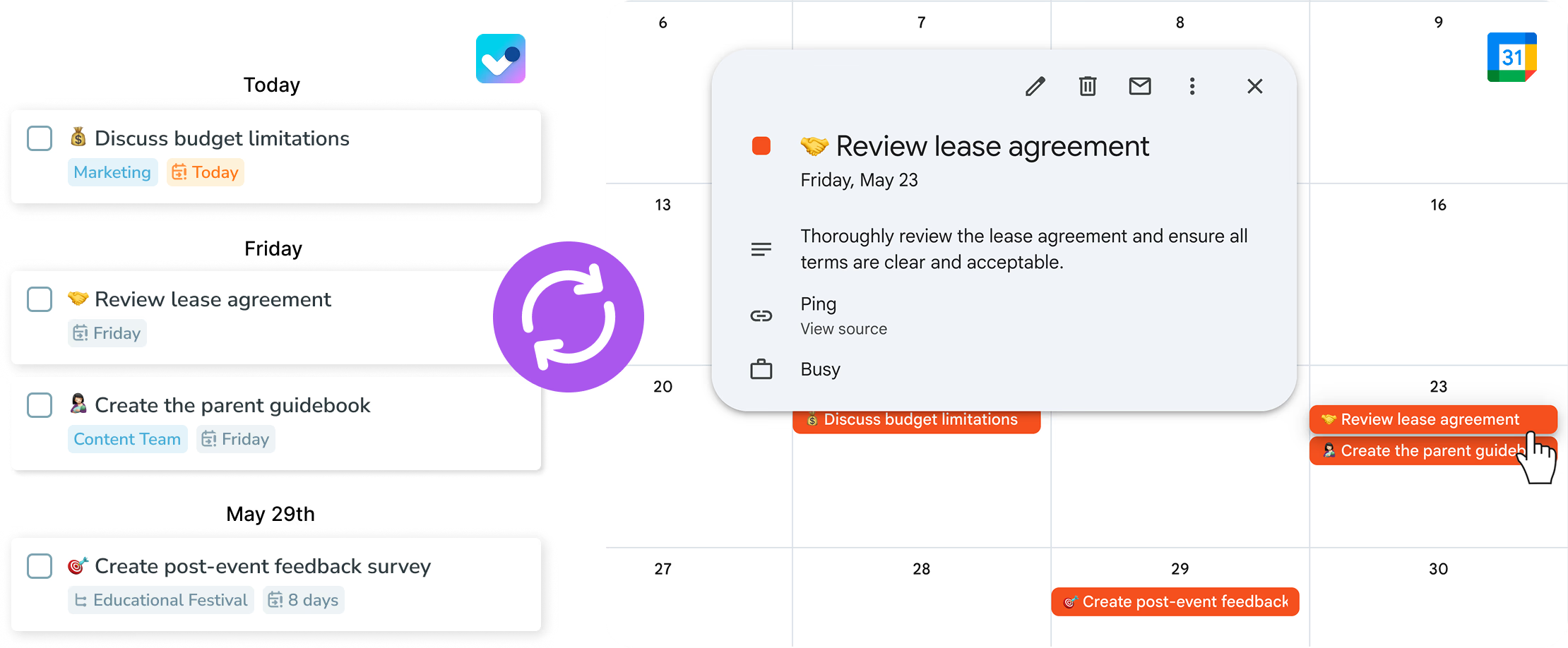
Ping adds a dedicated calendar with your task deadlines as all-day events, so your planned work is visible next to everything else on your schedule.
Bring your day into My tasks
Events from the calendars you choose can appear in My tasks or Today in Advanced mode, helping you plan around meetings without duplicate entry.
Why connect Google Calendar to Ping?
One plan for work and life
See your available time before you commit to the next task.
Reschedule without friction
Move a deadline in Calendar and keep the task plan aligned with it.
Keep ownership clear
Use Ping for task details and Calendar for time blocks, each in the tool where it belongs.
How to get started
- Open Ping settings. Sign in to Ping and open Settings from the app navigation.
- Choose Integrations. Open the Integrations tab and find Google Calendar in the list.
- Connect your calendar. Select Connect, sign in with Google, and choose which calendars Ping can use.
- Plan from either view. Use Ping for tasks and Google Calendar for your schedule; deadlines and connected events stay visible in both places.
Ping keeps the integration focused: your tasks remain manageable in Ping, and your schedule remains familiar in Google Calendar.
Google Calendar integration FAQ
What does the Google Calendar integration do?
Ping creates a calendar called Ping in Google Calendar and places your task deadlines there as all-day events. Events from the calendars you connect can also appear in My tasks, so your plan fits around your real day.
Can I reschedule a Ping task from Google Calendar?
Yes. When a Ping deadline appears as an all-day event, you can drag it to another day in Google Calendar and keep your plan up to date.
Will my Google Calendar events become tasks?
Connected calendar events can appear in My tasks or Today in Advanced mode. They help you see meetings and planned work together without copying every event into a task.
Which Google Calendars can I connect?
Choose the calendars you want to share with Ping when you connect the integration. You can keep personal calendars private and connect only the ones that help you plan your work.
Make your calendar work with your task list.
Capture. Plan. Do. The AI way.
Get Started