
Slack integration
Turn Slack messages into Ping tasks
Capture a request where it happens, then keep the actionable work in Ping with the context, deadline, and link back to the original Slack thread.
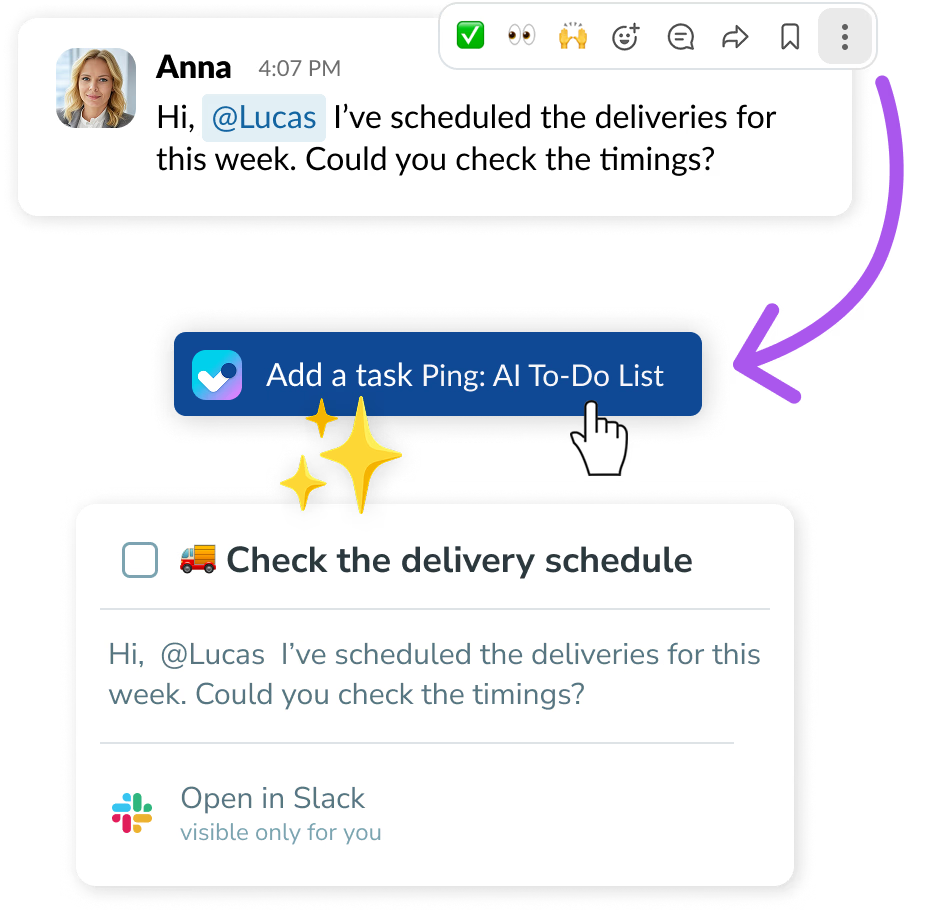
From a Slack message to a finished task
Spot the request
Find a message that contains something you need to remember or do.
Add it to Ping
Use Add a task and let Ping carry over the useful message context.
Keep the conversation close
Plan the task in Ping and jump back to Slack when you need the full thread.
See it in action
Capture work without breaking the flow
A quick Slack message should not become a forgotten promise. Turn it into a task while the context is still fresh, then give it a deadline, project, tag, or owner in Ping.
Connect Ping to Slack in a minute
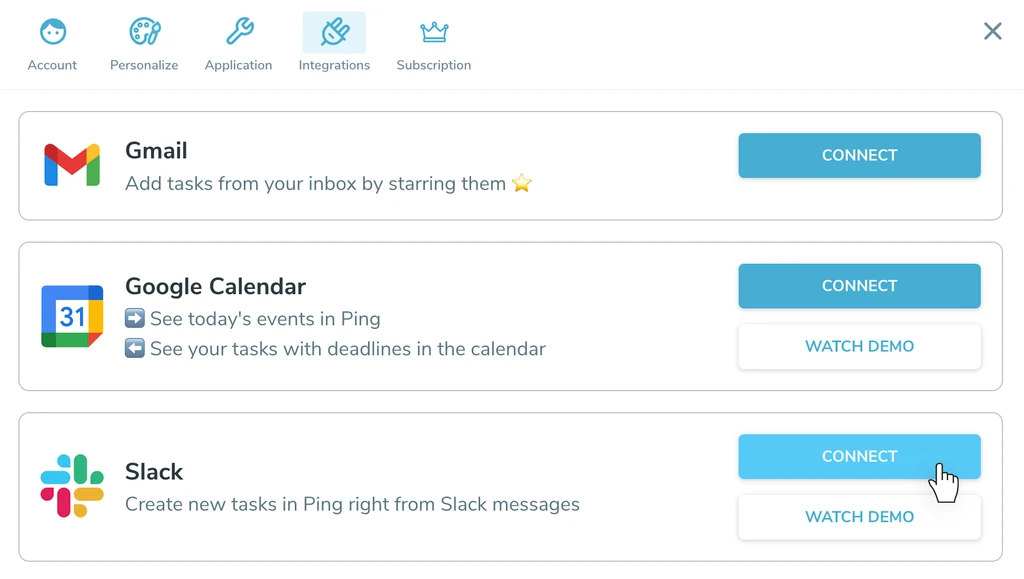
Open Settings → Integrations
Find Slack in the Ping integrations panel and select Connect.
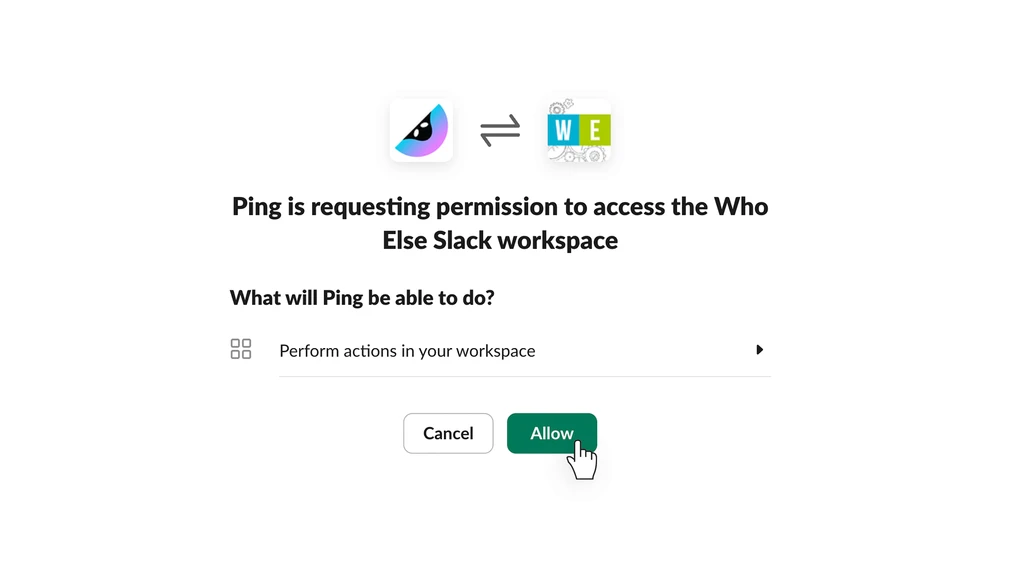
Allow access to Slack messages
Authorize Ping, then return to Slack and start creating tasks from messages.
Why use Slack with Ping?
Keep context
The original message stays one click away when a task needs more detail.
Make requests actionable
Move from “I’ll remember this” to a clear task with an owner and a next step.
Protect your focus
Collect work in Ping instead of leaving important requests buried in chat.
How to get started
- Open Ping settings. Sign in to Ping and open Settings from the app navigation.
- Open Integrations. Choose the Integrations tab and find Slack in the list.
- Connect Slack. Select Connect, authorize Ping, and return to your Slack workspace.
- Create your first task. Use Add a task on any Slack message and continue planning it in Ping.
Slack integration FAQ
What does the Slack integration do?
Ping lets you turn a Slack message into an actionable task with a clear title, message context, and a link back to the original thread.
Can I edit the task after creating it from Slack?
Yes. Once the task is created, you can add a deadline, reminder, project, tags, or an assignee in Ping and keep the original Slack link for context.
Do I need to copy and paste Slack messages?
No. Use Add a task on the Slack message and Ping carries the useful message content into the new task.
Can I return to the original Slack thread?
Yes. The Ping task keeps a direct link back to the Slack message so you can check the conversation whenever you need more context.
Turn the next Slack request into progress.
Capture. Plan. Do. The AI way.
Get Started